
When viewing Analytics in Dark mode, the system automatically adapts most widgets to the dark theme. However, you may notice that some styles in your reports do not render as expected or appear difficult to read (e.g., low contrast between text and background).
This article explains why this happens and how to adjust your reports for the best experience.
Why do some widgets look different?
When you switch to Dark Mode, Analytics automatically converts standard widget colors and styles to match the dark theme. This ensures a consistent and readable experience.
However, if you have previously updated the default styling of a widget (for example, changing the bar chart color from the default blue to red or updating the default palette in a donut chart), the system respects your manual configuration. This includes any conditional formatting that you have applied to your widgets (e.g., turning a metric red if it's below a certain number).
By design, the system doesn't auto-convert these settings to ensure that your specific design choices are preserved. Consequently, a widget with a dark text color on a dark background may appear jarring or difficult to read.
How to address these issues?
To ensure your reports look great in both Light and Dark modes, follow the steps below to view custom and curated reports.
Scenario 1: Fixing custom reports
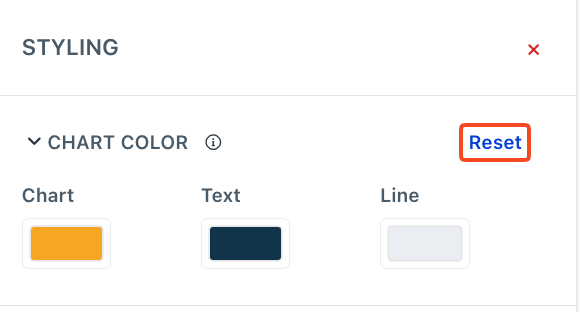
If you have edit access to the report, you can resolve this by reverting the specific styling elements to their default state by using the “Reset” option
Open your custom report.
In the Edit mode, select the widget that is not displaying correctly.
Navigate to the Styling option on the right navigation bar.
Locate the specific setting causing the issue (e.g., Background Color, Font Color).
Select Reset.
Save the report.
Scenario 2: Fixing curated reports
Curated reports are read-only by default, so you can't edit the widgets directly. If you encounter a styling issue in a curated report in Dark mode, you must first create an editable copy.
Open the curated report.
Select the Save As option to save a copy of the report as a custom report.
Open the newly created custom report.
Follow the steps in Scenario 1 above to edit the specific widgets and reset their styles to default.
Summary
Default styles automatically adapt to Dark/Light themes.
Custom styles (including conditional formatting) stay exactly as you set them.